Create User Pool
In this section, we will create an Amazon Cognito User Pool to manage user authentication for the FCJ Book Store application.
Amazon Cognito User Pool is a user directory that provides sign-up and sign-in options for your application. It handles user registration, authentication, and account recovery automatically, so you don’t need to build these from scratch.
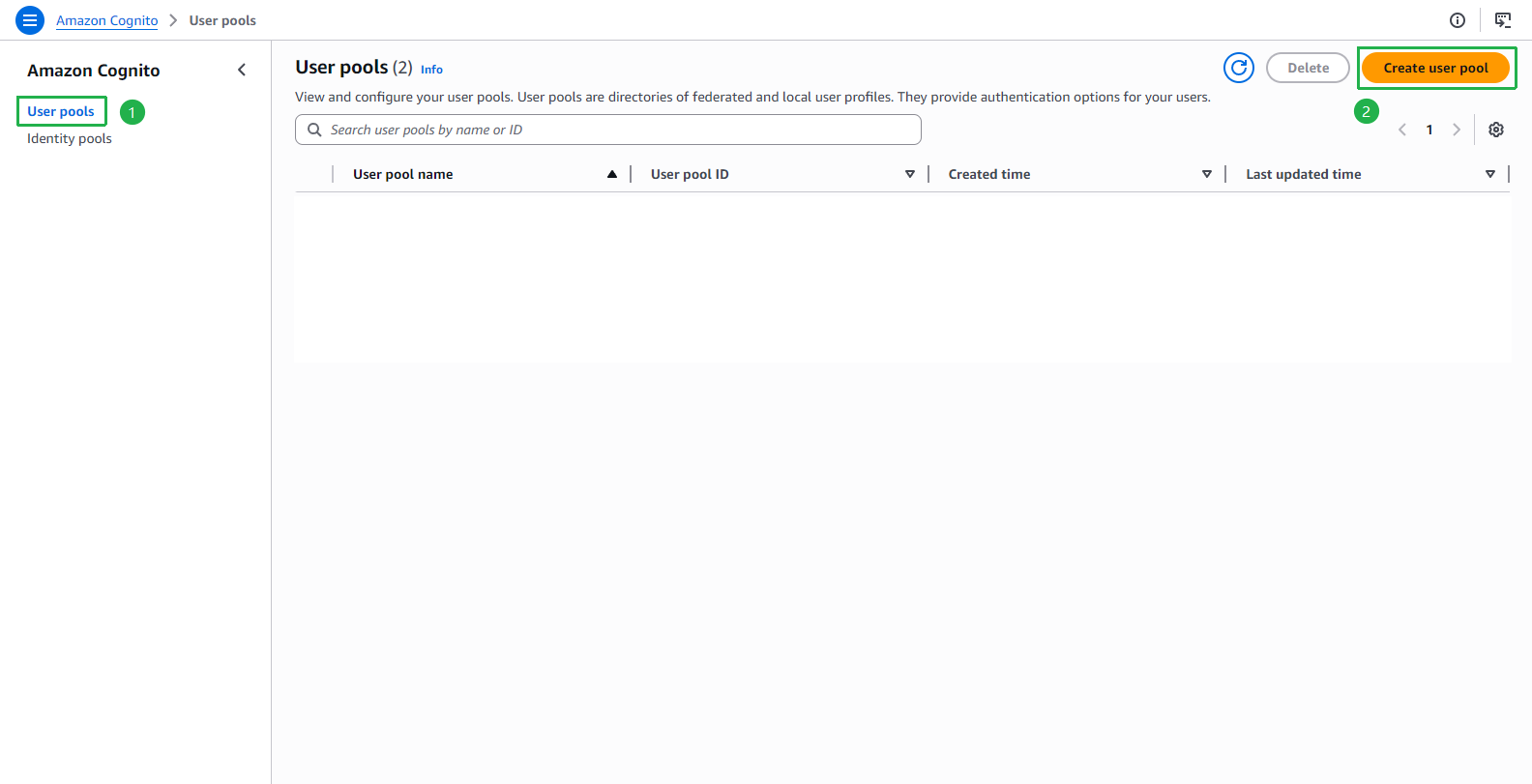
Open Amazon Cognito console.
Select User pools on the left menu.
Click Create user pool.
At the Set up resources for your application page.
Select Traditional web application as the application type.
Choose Traditional web application because our back-end will authenticate users using server-side Lambda functions calling the Cognito API directly (using
CLIENT_SECRET), rather than a JavaScript SDK in the browser.Enter
cognito-fcaj-book-shopin the Name your application field.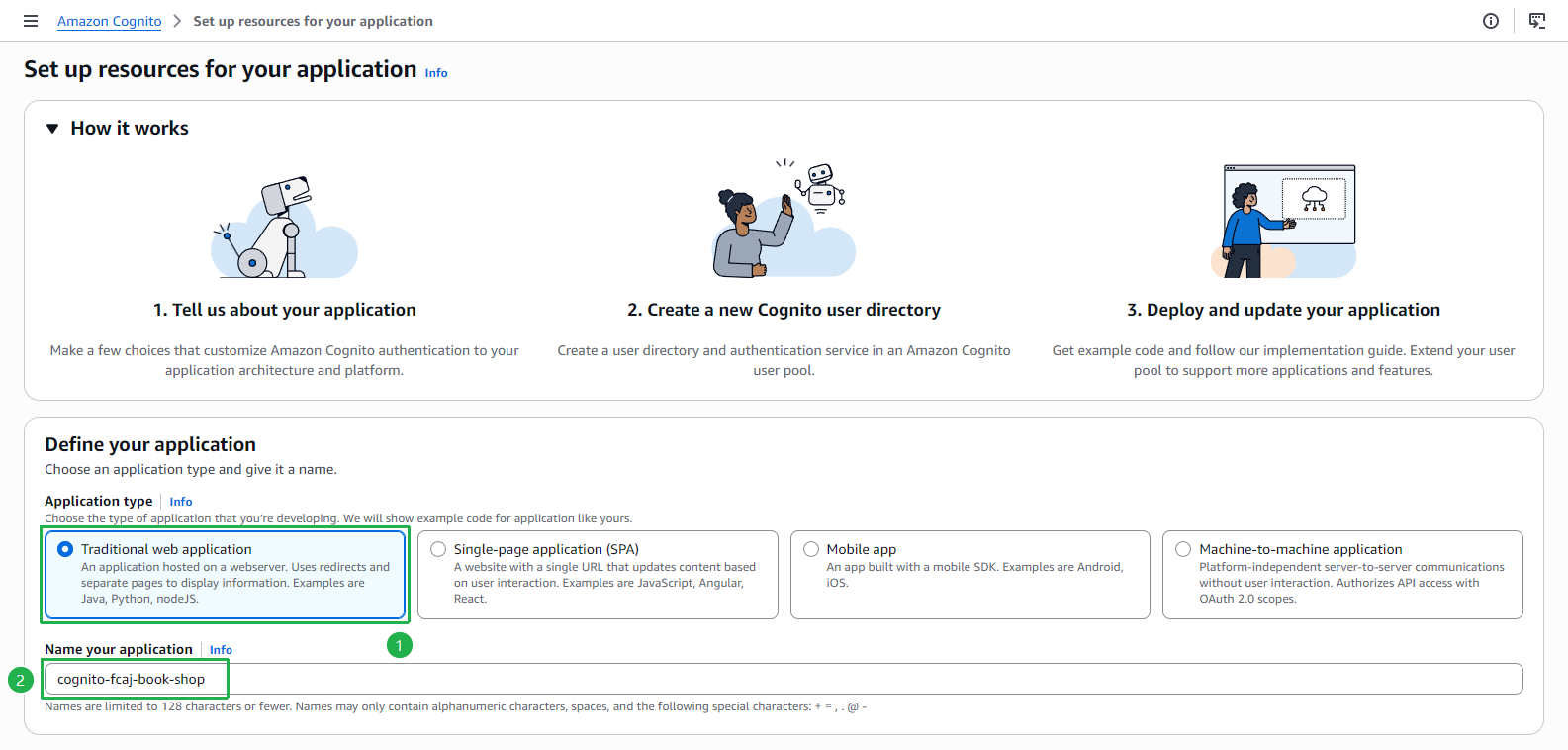
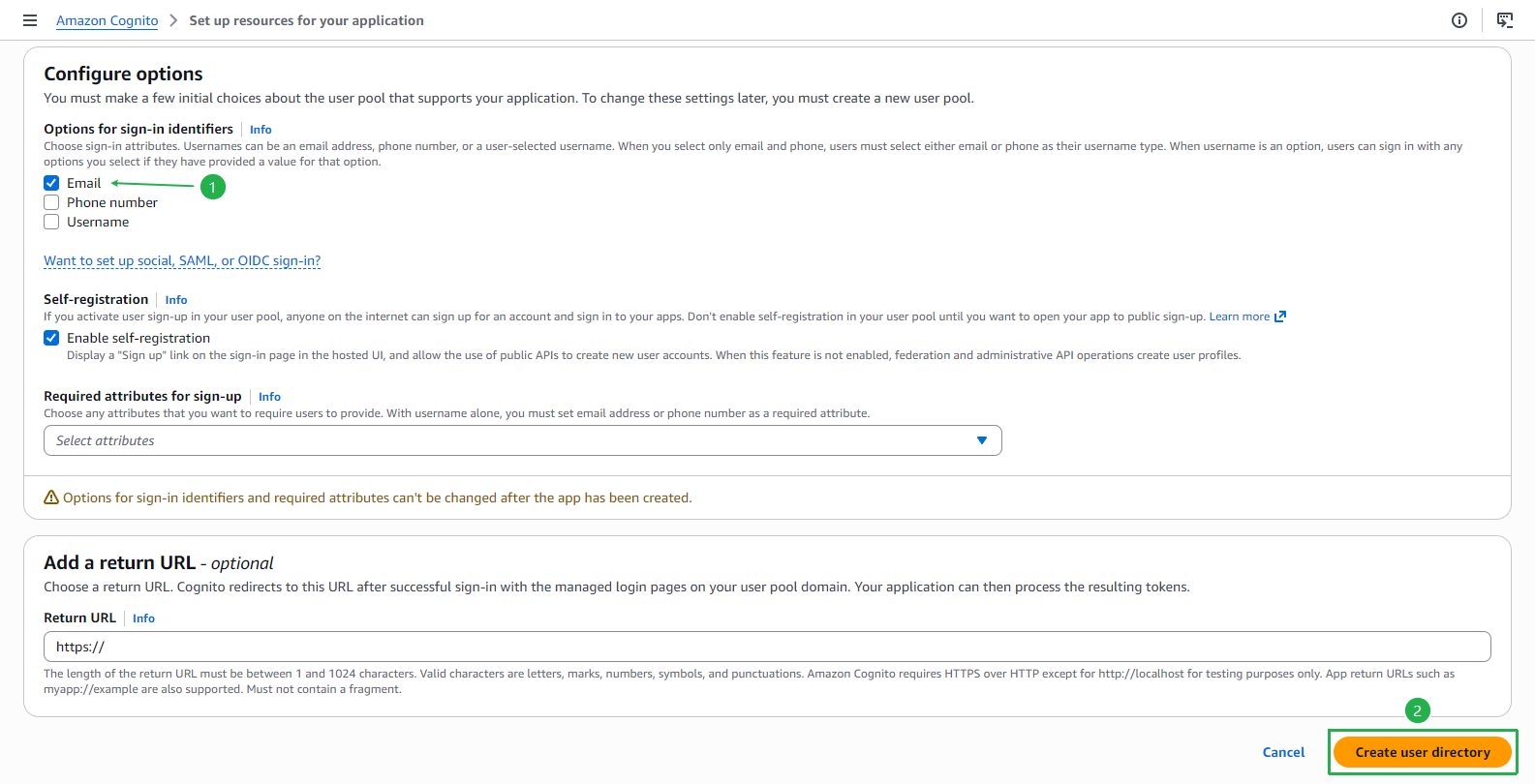
Scroll down to the Configure options section.
Under Sign-in identifier, select Email.
Click Create user directory.
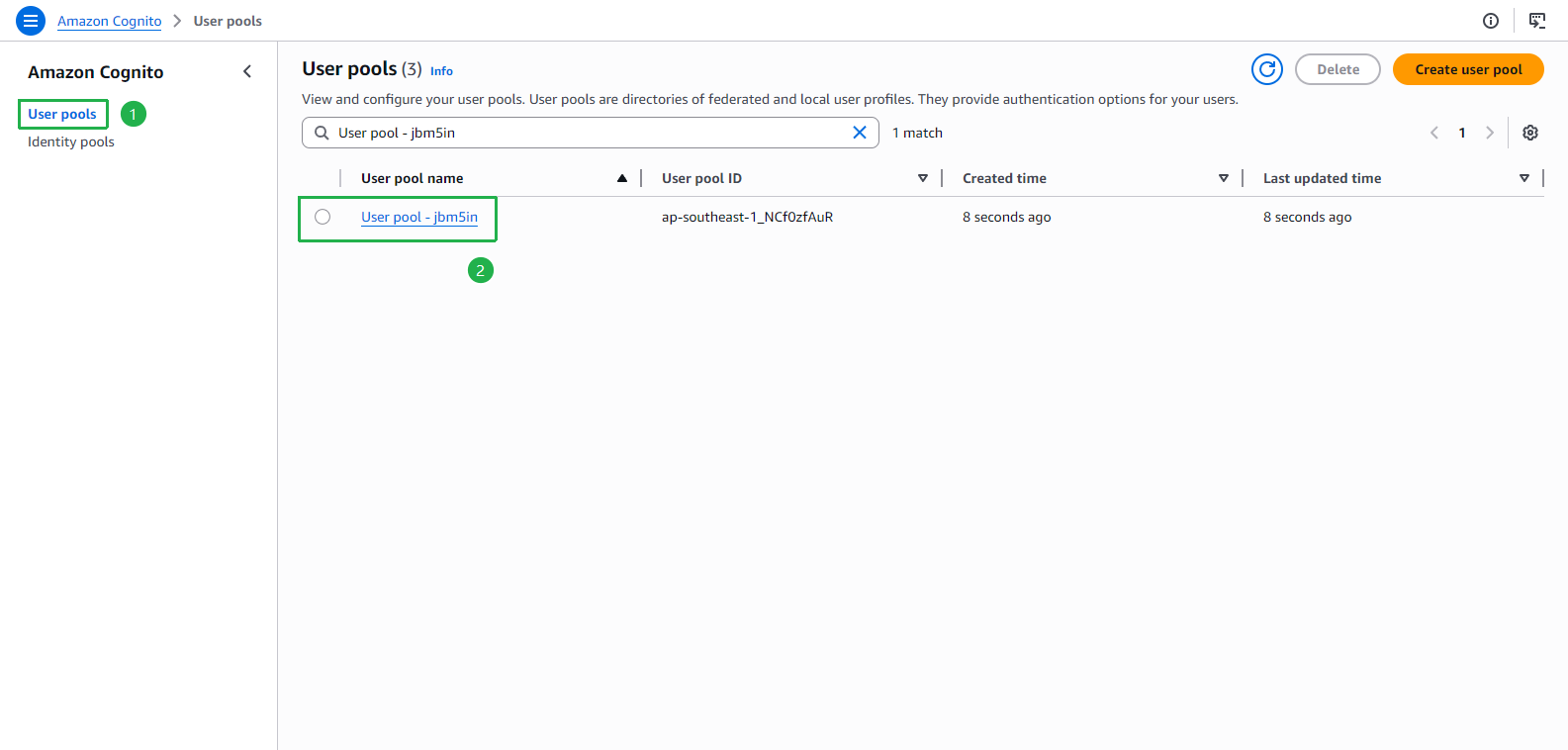
Back to the Amazon Cognito console.
Select User pools on the left menu.
Choose the User Pool that was just created (e.g., User pool - jbm5in).
At the User Pool details page.
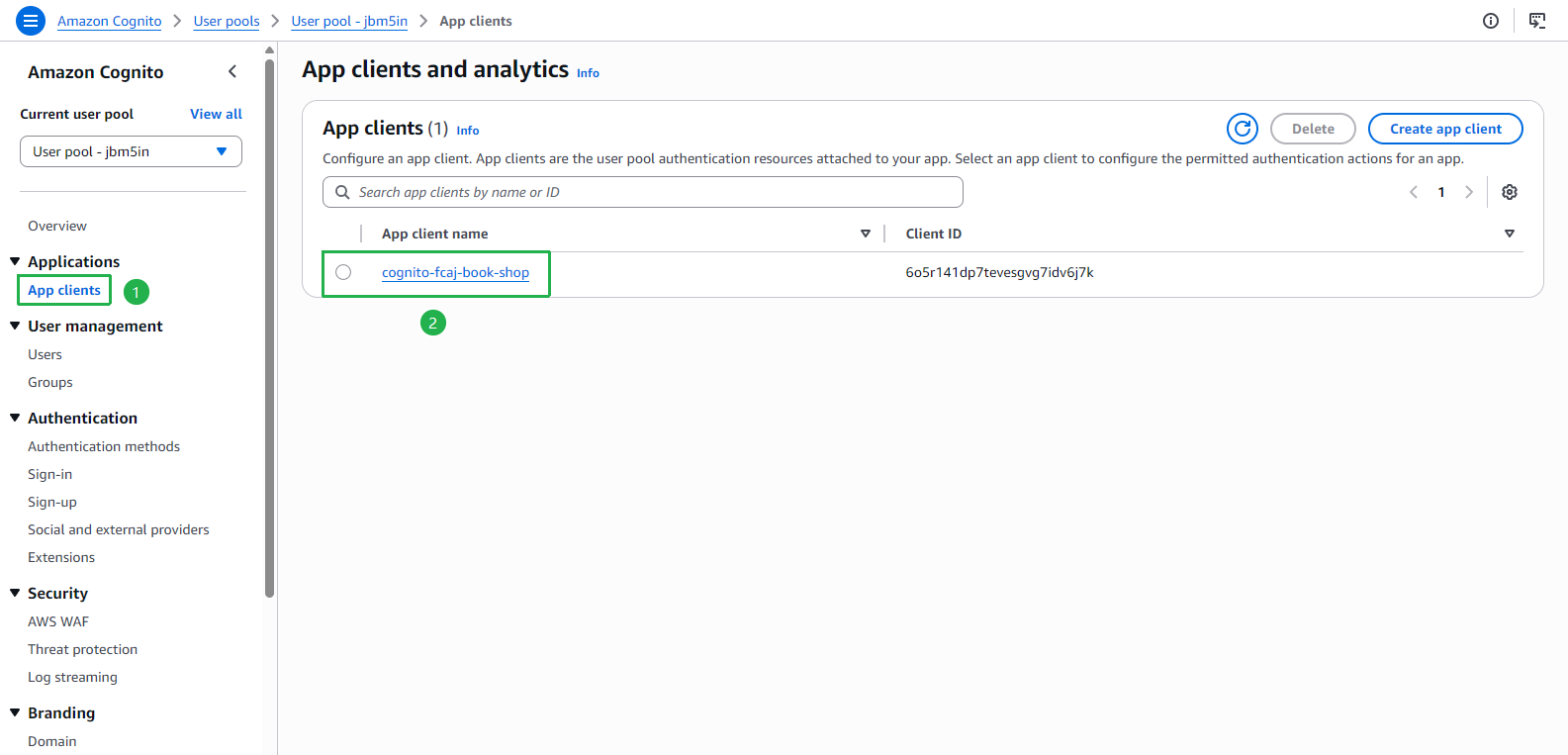
Click App clients on the left menu.
Click on the cognito-fcaj-book-shop app client name.
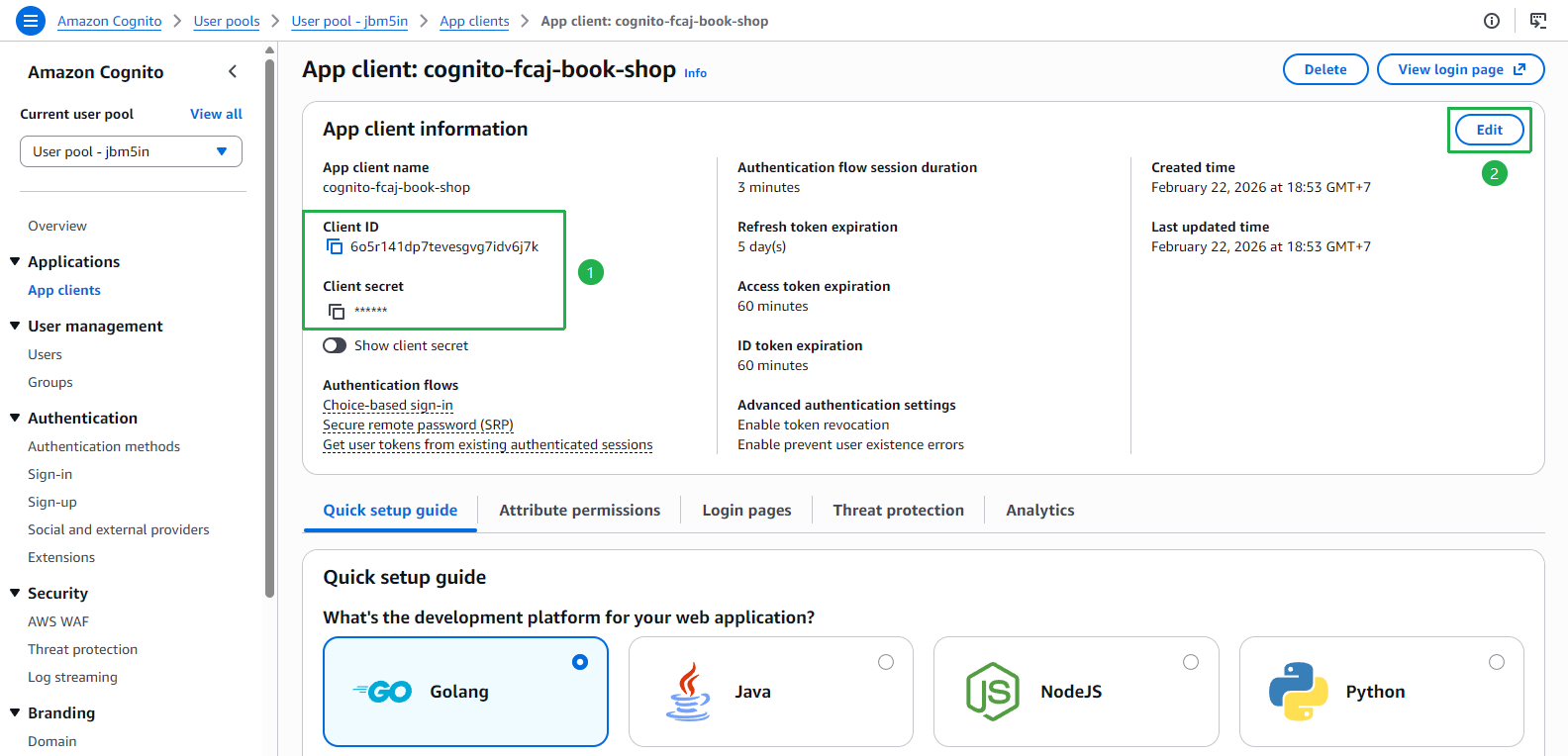
At the App client: cognito-fcaj-book-shop page.
Record the Client ID and Client secret values — you will need these in Section 3 when configuring the Lambda functions.
The Client secret is only shown once here. If you lose it, you will need to rotate it. Keep it secure and never commit it to source control.
Click the Edit button.
At the Edit app client information page.
Under the Authentication flows section, check ALLOW_USER_PASSWORD_AUTH.
We enable ALLOW_USER_PASSWORD_AUTH because our Lambda login function calls
initiate_authwithAuthFlow="USER_PASSWORD_AUTH"— this flow allows direct username/password authentication. Without this, the API call will return aNotAuthorizedExceptionerror.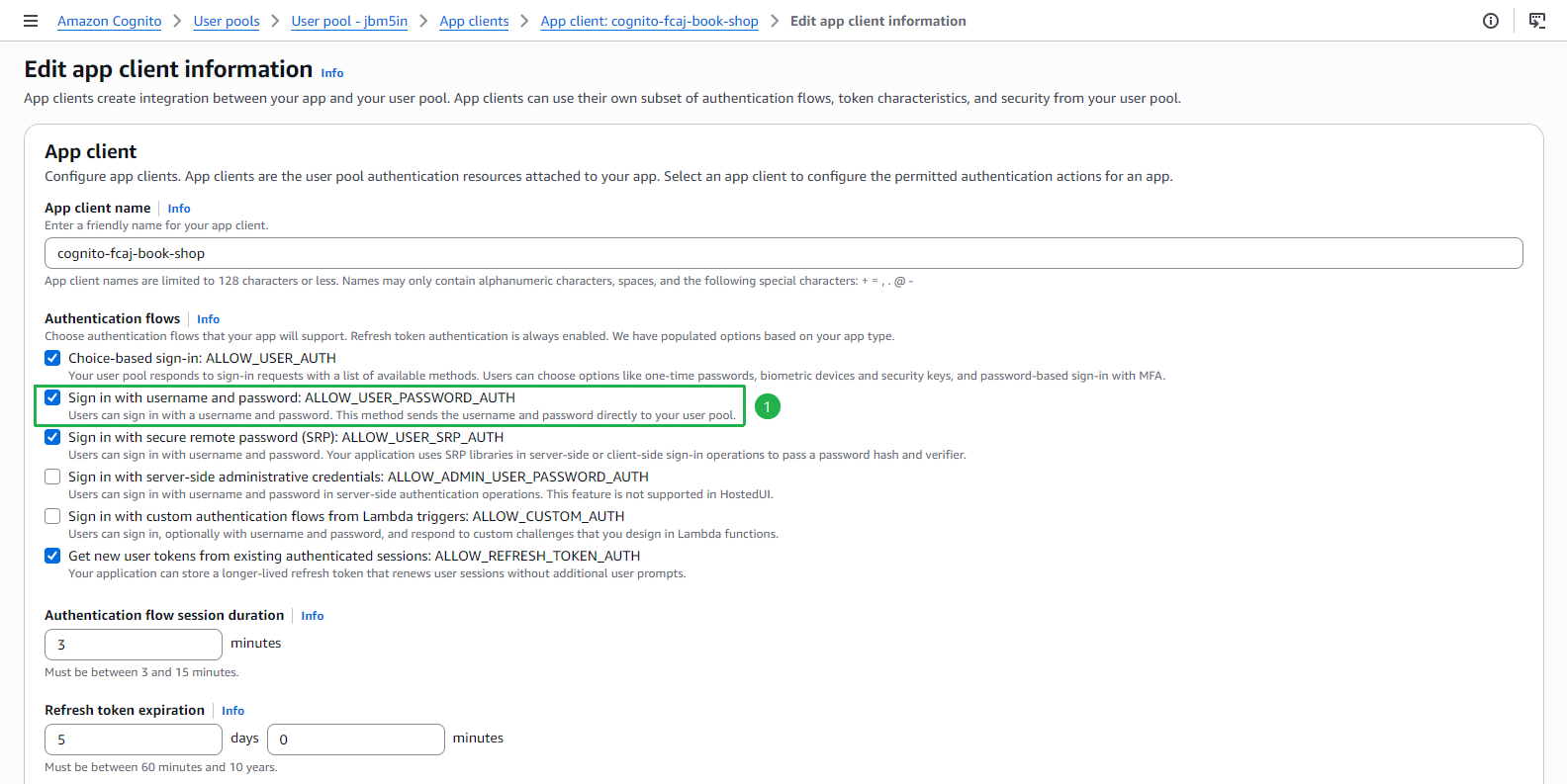
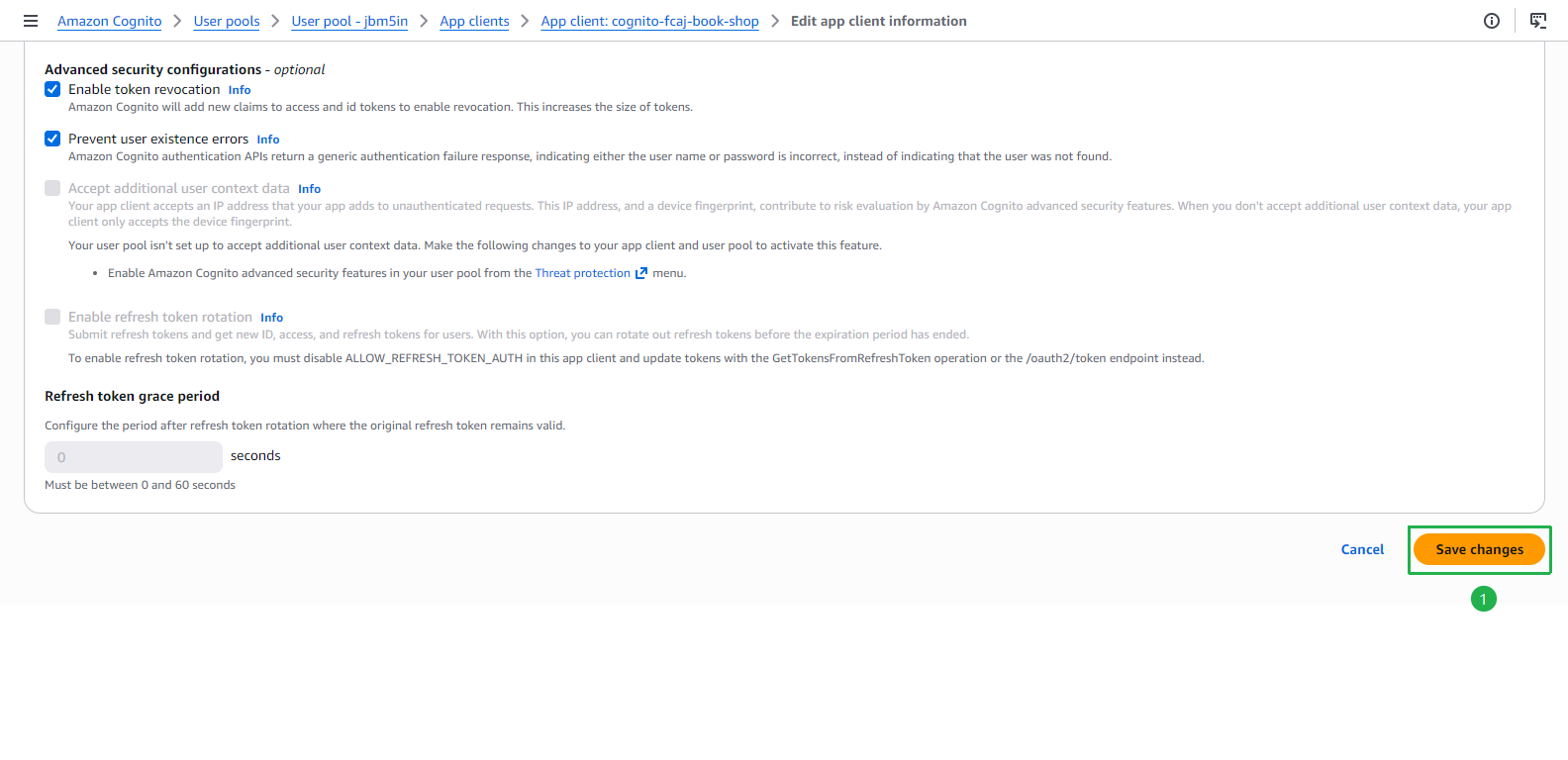
Scroll to the bottom of the page and click Save changes.
We have successfully created the Cognito User Pool and configured the App Client. In the next section, we will create Lambda functions and API Gateway resources to handle user registration, confirmation, and login.